As of API level 142 we are releasing a supplemental Node to the Smartphone App messaging system. This does not replace our RabbitMQ messaging system, which is still the mainstay of how your ClearNode device communicates with your ClearNode mobile app. This new communication system, which we are calling “TCP Direct Messaging”, is supplemental and optional. It is disabled by default – you must explicitly enable it if you want to use it. If you don’t want to mess with it – you don’t need to do anything – continue as you were.
TCP Direct Messaging is only available for ASL3 based nodes – the python and openssl versions in the HamVoIP image are too old and are not compatible.
The History …
From the outset we have used RabbitMQ messaging to effect control and configuration messaging between ClearNodes and the Apps. Initially we implemented this at Amazon AWS using their MQ service. At a certain point we experienced several outages and service slowdowns that made us realize how much of a “black box” their service was and that we had next to no control or visibility. Our response was to implement our own RabbitMQ server in a cloud instance and migrate all users over. That implementation is in service to this day.
There are many advantages to using this type of “hub and spoke” methodology – particularly because it provides connectivity wherever you are and wherever your nodes are – they just need to be connected to the internet. There’s no need to setup port forwarding or anything like that.
However, there are disadvantages – particularly if you are geographically distant from the message server, or your internet connection is poor. You tend to get lag in the connection which creates a less than perfect user experience.
Direct Messaging
The new, supplemental system attempts to connect directly to your ClearNode over the local LAN, or if configured, the WAN. This topology is often called “Peer to Peer”.
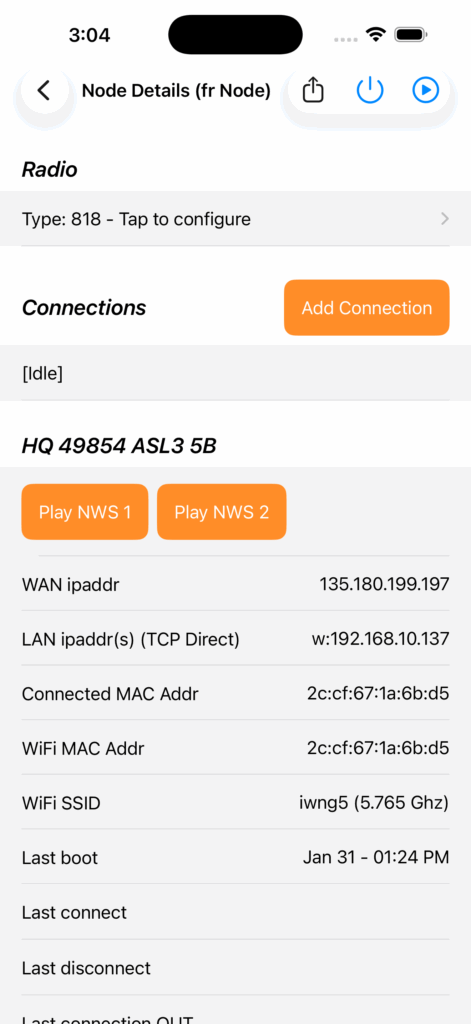
Initially the traditional MQ messaging is used to discover your node and list them in the “Your Nodes” screen. If “TCP Direct Messaging” is enabled on your node, and you navigate to the “Node Details” screen, your App will attempt a direct TCP connection to the node since it knows the node’s LAN (or WAN) IP Address.
If the connection is successful, correctly authenticates, and so long as you stay on or below the “Node Details” screen, subsequent 2 way messaging will be directed over the TCP Direct connection. This “peer to peer” connection, in some instances, is much faster and more responsive than the RabbitMQ connection – giving you a slicker user experience when managing your node.
Once you back out of the “Node Details” screen to the “Your Nodes” screen the connection is terminated and you are reverted to the MQ system.
This all happens seamlessly and, apart from the improved performance, you shouldn’t see any difference in functionality.
Enabling TCP Direct Messaging
From the “Node Details” screen navigate to the “AllStar Setup” screen. At the top you will see a new section “TCP Direct Messaging”.
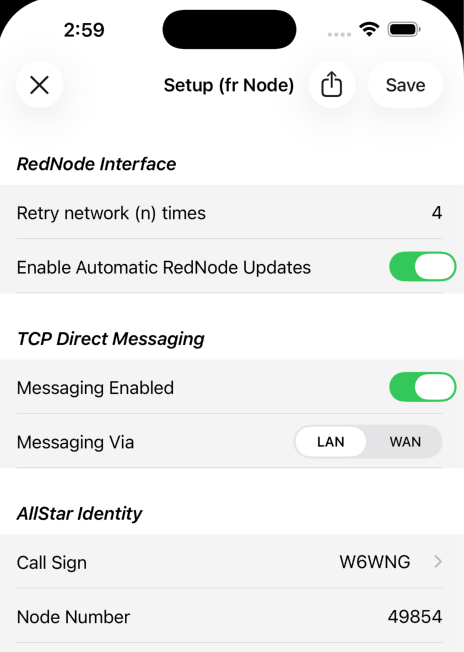
Turn on “Messaging Enabled” and Save the setup to your node which will reboot. Next time your ClearNode starts and re-appears in the “Your Nodes” screen, tap into it and TCP Direct should start automatically – you will know it’s connected because “(TCP Direct)” will be displayed next to the appropriate IP address.
Using TCP Direct over the WAN
If you want to use this messaging system when your Smartphone App is not on the local LAN, i.e. it is connected to a different WiFi or Cellular network – you need to do two things. First, change the value of “Messaging Via” to “WAN” and save the setup to your node. Second, you must implement port forwarding in the WiFi/Router that connects your ClearNode to the Internet. You need to forward two TCP ports – 6123 and 6321. This is very similar to what you have to do to enable EchoLink on your node. But … be sure you select TCP and not UDP.
Caveats
You cannot use LAN and WAN based messaging simultaneously – you can switch between them via “AllStar Setup” – either one or the other is enabled.
If you attempt to use 2 mobile devices simultaneously, e.g. an iPhone and an iPad, you will get strange behavior with one device being ignored and unable to control the node.